


Get these right once and the rest of the setup moves quicker, tool after tool. Part two of dialling in a new Procore project.
Part one was the foundation. Your role, the template, and the core project settings, before the team get going.
This part is about the settings that aren't specific to any one tool. Custom views, tracking, notifications, default due dates, privacy controls. They work the same way across virtually every tool in Procore, which is why I call them universal features. Once you understand the pattern, you start to recognise it everywhere.
Custom views
A lot of tools in Procore let you create saved views. Filtered, sorted, column-configured views that you can save and share with your team. Most useful in Correspondence, RFIs, Document Management and Change Events, though you'll find view configurations in plenty of other tools too.
The key is views that match how your team works and how the project operates, rather than everyone scrolling the default list. Open RFIs assigned to me. Correspondence by type. Pending change events. Set them up once and the whole team gets the benefit.
Tracking and subscriptions
This is how you stay on top of changes without opening every tool each day. In drawings, documents, specifications and photos you can subscribe, so you get told when something changes or when a new item gets added.
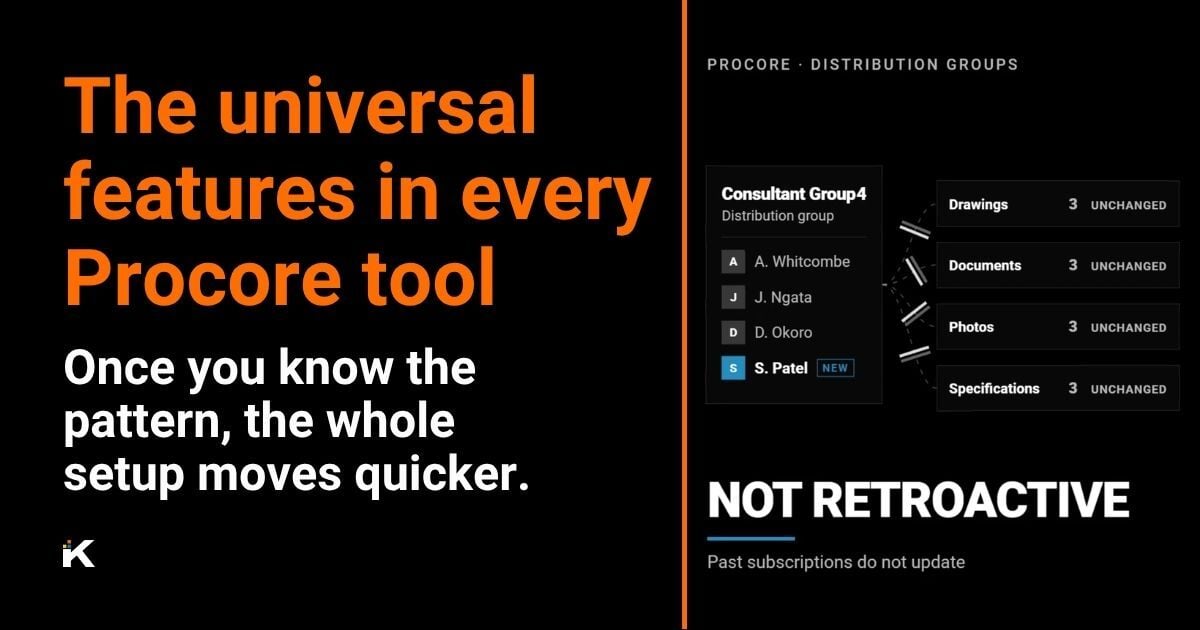
The thing most people miss is that to use this properly you need your distribution lists set up first. Distribution lists define groups of people, and those groups get used for tracking and subscriptions across different tools. If you're an admin on a tool you can force subscribe people, individually or through the groups.
So before you subscribe to individual items for yourself or anyone else, get the distribution lists configured in the Directory. Think about discipline. The structural team, the mechanical team, the services group, your internal team, the client group. Whatever grouping makes sense for the job.
One caveat here, and it's a real one. Distribution groups aren't currently retroactive. Update who's in a group and it doesn't go back and change where you've already used that group to subscribe people. So keep a register of where you've used the groups, and as you add people, go and add them in those places too.
"Distribution groups aren't currently retroactive. I wish they were, but they're not."
Default distribution
Related, but a different thing. Default distribution controls who automatically gets copied on an item in a tool, and it isn't the same as notifications. Someone creates a new file or sends a piece of correspondence, and certain people are added automatically. It's like being CC'd on an email, so the right people see the right things without anyone having to add them each time. It's set at tool level. Default distribution for files, and default distribution for correspondence, which is done per type.
Notifications
Procore lets you configure custom notifications at project level for RFIs, correspondence, inspections, submittals, action plans and more. The defaults might not match how your project runs, who you've got on it, and what they're responsible for.
The balance here is really important. Too many notifications and people start ignoring them. It creates white noise. But too few and things slip through the cracks. What I'd recommend is configuring notifications for the critical handoff points. An RFI that needs a response, a submittal back for review. Turn off the noise for everything else.
"Too many notifications and people start ignoring them. It creates white noise. But too few and things slip through the cracks."
As mentioned in part one, automated reports for action item delivery can often work better than individual notifications.
One thing to be aware of. Most tools have custom notification settings, but not all of them do as yet. The biggest culprit by far and away is the Observations tool, which gets used heavily and still doesn't have them.
Default due dates
Quick one, but an important one. Several tools let you set default due dates, Observations and Correspondence among them, so when someone creates an item the due date calculates off your settings.
If the contract says RFIs are to be responded to within ten days, set that. If observations need closing within a week, configure it accordingly. Small setting, but it saves a fair bit of admin time across the life of the project, and it means when an item goes overdue it truly does need action.
Those calculations run off the working days setting in the Project Admin tool, which we covered in part one, so get that done first.
Project templates and workflows
Your company admin has likely set up company-level templates for inspections and action plans. At project level you pull those in and customise them where you need to. Often they're pre-assigned already. Review the inspection templates, make sure you've got everything the job needs, and if something's missing speak to your company admin. Same with action plans.
Meeting templates work a little differently. Unlike inspections and action plans, they aren't assigned or permissioned to specific projects, including the project template. Once created at company level they're available across all projects automatically.
Then there's workflow configurations, which apply to the financial tools, project document management and correspondence. Built at company level, brought into the project, and once they're in you need to fine-tune them and assign the right people to the right steps. Not doing that leads to workflows not working correctly, and it's what holds governance and process together on the job. Almost always different on every project, so go through every tool that uses workflows.
Trades and activity types
Here's one that often flies under the radar. Procore calls these templates, but the name is quite misleading. They aren't templates the way inspections and action plans are. They're lists of dropdown options used at project level to assign automatically to specific users and trades, and it applies to the Defects List and Observations.
In practice, someone chooses one of the observation types from the custom dropdown and it assigns itself to the right trade and the right user, without the person creating it needing to remember anything. Take the time during setup to map your trades to your activity types. It eliminates the manual assignment later and makes the whole process, particularly with defects, incredibly fast.
Privacy
My general recommendation is private by default across all tools, unless you have a very specific reason not to. When someone creates a new item, an RFI or a piece of correspondence, it's private unless they explicitly choose to make it public. Admin users can always see everything on that tool regardless. For the rest of the team, private by default gives you control over information flow and access.
Correspondence has a level above that, called super private. It's controlled at company level by correspondence type, and even admin users on a project can't see the item unless they're specifically included. It's designed to let external collaborators use correspondence knowing it will only be seen by the people they include. Useful in some situations, and a problem if you're not aware of how it works, so have a chat with Procore before you apply it.
Where this goes next
Part three gets into documentation and financials, the office-based tools. Part four covers communication and site tools, and closing out your setup. The Procore project setup checklist covers all of it in one document, and that'll be a download link in part four.